Links
IPhone: XProtect® Mobile App - App Store
Android: XProtect® Mobile - Apps on Google Play
Instructions
- Install the mobile app from your mobile app store. (Links above)
- Open the app after installed.
- Android: On the "Help us deliver..." screen, press "No thanks".
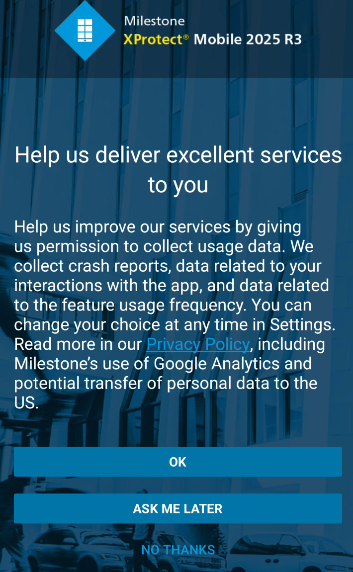
- Iphone: Press "Continue" at the bottom.
- Press Close at the bottom of the "What's New" screen.

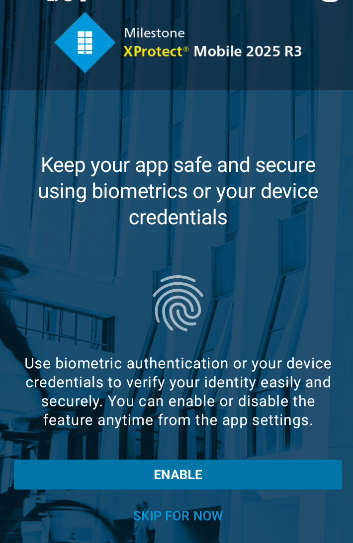
- Enable Biometric Authentication (Optional; Otherwise press "skip now").
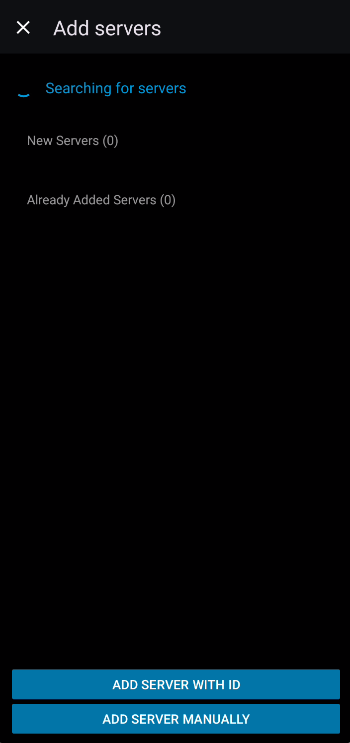
- When you get to the "Welcome to XProtect Mobile", press "Add Server".

- Select "Add server manually" at the bottom.
- Input the following information, then press the blue "Continue Login" at the bottom at the bottom.
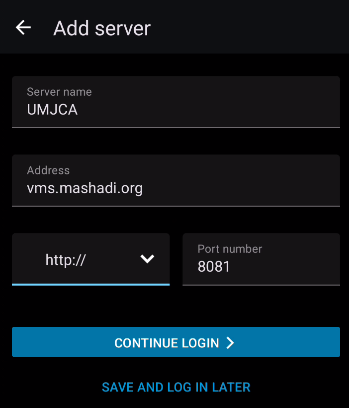
- Server Name: UMJCA
- Address: vms.mashadi.org
- Protocol: HTTP://
- Port Number: 8081
- Select "Basic user" at the top, and Input the following information, then press the blue "Continue Login"
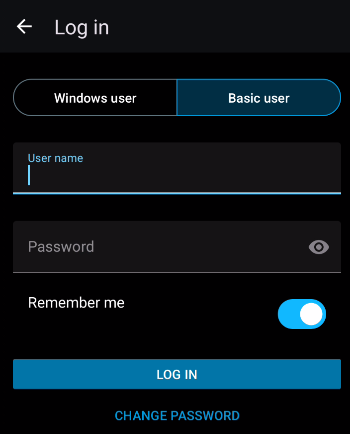
- User name: (given to you separately)
- Password: (given to you separately)
- Remember me: Yes
Change Settings: (optional)
- Press the User Icon at the top left
- Go to App Setting
- Android: "App Settings"
- Iphone: "Go to the app settings"
- Change the following settings (as you please)
- Stay Awake: ON or OFF (keeps the screen/awake while live viewing a camera stream
- Use Biometrics or Device Credentials: ON or OFF (Allows you to lock the app with Finger, Face or Password)
- Set Frames per second: 15 (Recommended: 15-30; raise if you want single live streams smoother, but uses more data/bandwidth)
- Conserve Bandwidth: ON or OFF (Recommended: Off; lowers video quality to save data)
- Lower video resolution: ON or OFF (Recommended: Off; lowers video resolution to help videos load faster/smoother)
- Display only key Frames: ON or OFF (Recommended: Off; Only shows snapshots every couple seconds instead of a live view)
- Press Back, at the top left to save settings
- Press Close at the top left to go back to main page.
Was this article helpful?
That’s Great!
Thank you for your feedback
Sorry! We couldn't be helpful
Thank you for your feedback
Feedback sent
We appreciate your effort and will try to fix the article